
Settings and Preferences is where you update your profile basics, change how Unfair looks and reads, control reminder access, tune coaching-related options, and find support, release notes, credits, and onboarding reset tools.
What you can change in Settings
In the main App Preferences screen, Unfair groups settings into a few clear areas:
- `Basics` for your photo and personal profile details
- `Interface` for appearance, app icon, language, and units
- `Coaching` for visibility options, streak behavior, week start, and preference inputs used across the app
- `Notifications`, `Releases`, `Credits`, and support links near the bottom
- `Restart Onboarding` if you need to begin setup again
If you are trying to fix a specific issue, start with the section name that matches what feels wrong in the app.
Basics
The `Basics` section lets you:
- change your profile photo
- edit your first name
- review your birth date, height, weight, and gender
Birth date, height, weight, and gender appear here as values you can review. If some basics are missing, Unfair can attempt to fill missing profile details from HealthKit when that data is available and permission has been granted.
If your profile details look incomplete or incorrect, check HealthKit Permissions, Health Data Sync, and Onboarding Profile.
Interface
The `Interface` section controls how Unfair looks and how values are displayed.
Appearance
Use `Appearance` to switch the app's visual theme.
App Icon
If your iPhone supports alternate app icons, you will also see an `App Icon` setting.
Language
Use `Language` to choose the language Unfair uses in the app. Your selection is saved and used again on later launches.
For language-specific help, see App Language Setting, Supported Languages, and Localization.
Units
Use `Units` to choose how measurements such as height and weight are shown in the app.
Coaching
The `Coaching` section mixes simple visibility toggles with preference screens that shape how parts of Unfair are presented.
Experiment Data Sharing
`Experiment Data Sharing` opens a dedicated screen where you can turn sharing on or off, review sync status, preview the shared payload, and stop sharing with a reset of your anonymous ID.
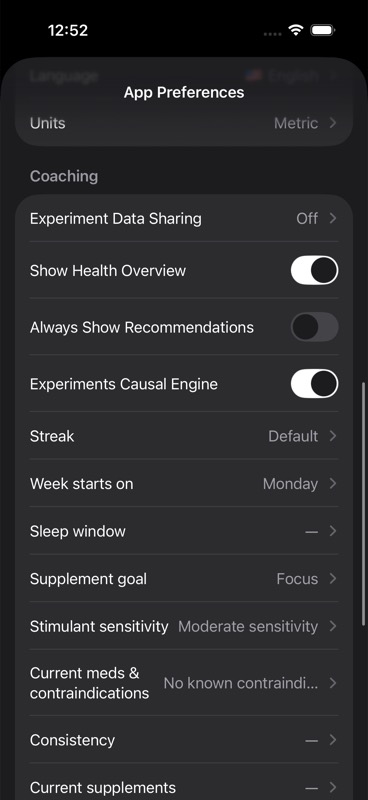
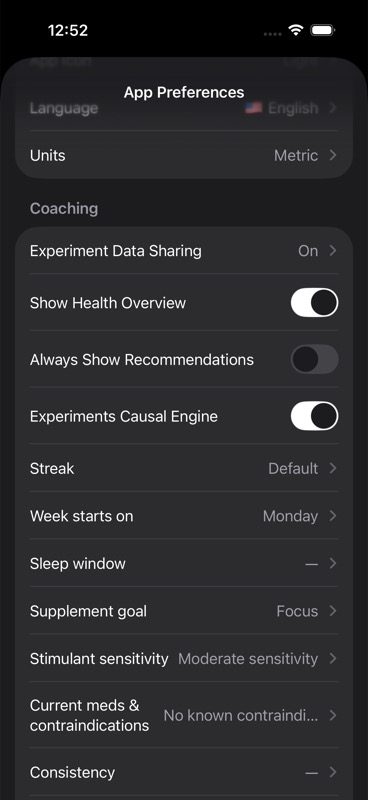
See Experiment Data Sharing and Privacy and Data.
Show Health Overview
`Show Health Overview` controls whether the health overview tile appears in the You experience.
Always Show Recommendations
`Always Show Recommendations` controls whether recommendations are always surfaced in the You experience.
Experiments Causal Engine
`Experiments Causal Engine` controls whether the causal-engine interface appears inside supported experiment detail screens.
Streak
`Streak` opens the streak settings screen. You can choose between:
- `Default` for a day-to-day streak that resets when you miss a day
- `There Is Only Now` for a week-based streak view
- `Focus On Year` for total logged days in the current year
You can also turn on `Allow 1 Miss`, which lets one skipped day keep your streak alive in the modes where that option is available.
See Consistency Streaks.
Week Starts On
`Week Starts On` lets you choose which day Unfair treats as the start of the week.
This matters most when you use weekly streak behavior.
Sleep window
`Sleep window` opens your sleep-window preference.
Supplement goal
`Supplement goal` opens your goal preference.
Stimulant sensitivity
`Stimulant sensitivity` opens your stimulant sensitivity preference.
Current meds & contraindications
`Current meds & contraindications` opens the screen where you review whether you have current medications or contraindications.
Consistency
`Consistency` opens the preference screen for obstacles and consistency-related factors.
Current supplements
`Current supplements` opens the list of supplements you already take.
Cycle preference
`Cycle preference` opens your cycling preference.
If you want the background on how these planning inputs connect to recommendations and reminders, see Recommendation Signals, Cycle-Aware Reminders, and You Tab Personalization.
Notifications
The `Notifications` screen handles reminder access and reminder behavior.
Inside this screen, Unfair can:
- ask you for notification permission if you have not granted it yet
- send you to iPhone notification settings if permission was denied
- let you turn `Smart Reminders` on or off
- show preview cards based on your current setup
- show the quick actions that appear on supported reminders: `Log Now`, `Snooze 30m`, and `Skip This Dose`
If notification access is off, reminder setup in this screen is locked until permission is restored.
The screen also states that Unfair does not use notifications for marketing or sales.
For more detail, see Local Notifications, Cycle-Aware Reminders, and Quick Actions.
Support, Releases, and Credits
Near the bottom of App Preferences, you will also find:
- `Contact Support`, which opens a form with fields for your name, email, topic, and message
- `Releases`, which shows the release notes bundled with the app
- `Credits`, which shows acknowledgements and library credits
- `Feedback`, which opens your email app if a feedback email link is available in your build
If you are reporting a bug, Troubleshooting is the best companion page to check first.
Restart Onboarding
`Restart Onboarding` is the reset option at the bottom of App Preferences.
When you choose it, Unfair shows a confirmation alert that says this resets your profile and recommendations.
Use this only when you want to go through setup again from the beginning.
Where to go next
Use the help page that matches the setting you are changing:
- Supported Languages for language choices
- Experiment Data Sharing for privacy-safe research sharing
- Consistency Streaks for streak modes and missed days
- Local Notifications for reminder delivery
- Privacy and Data for storage and sharing boundaries
- Troubleshooting when something in Settings does not behave as expected