
Your onboarding profile is the small set of answers Unfair uses to generate your first recommendations and personalize the app from day one.
What the shipped flow looks like
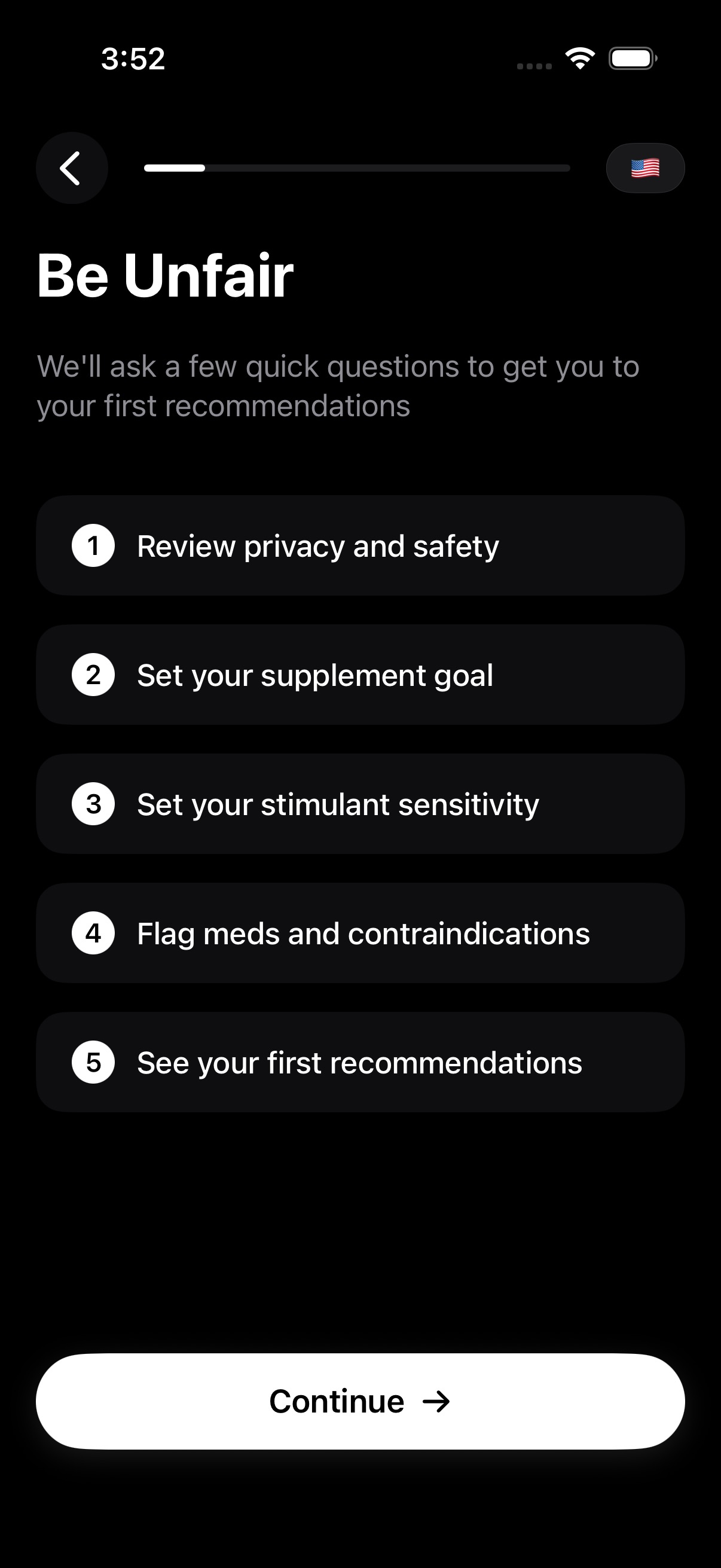
After you tap `Get Started`, Unfair first shows a short overview of the setup sequence before you start answering questions.
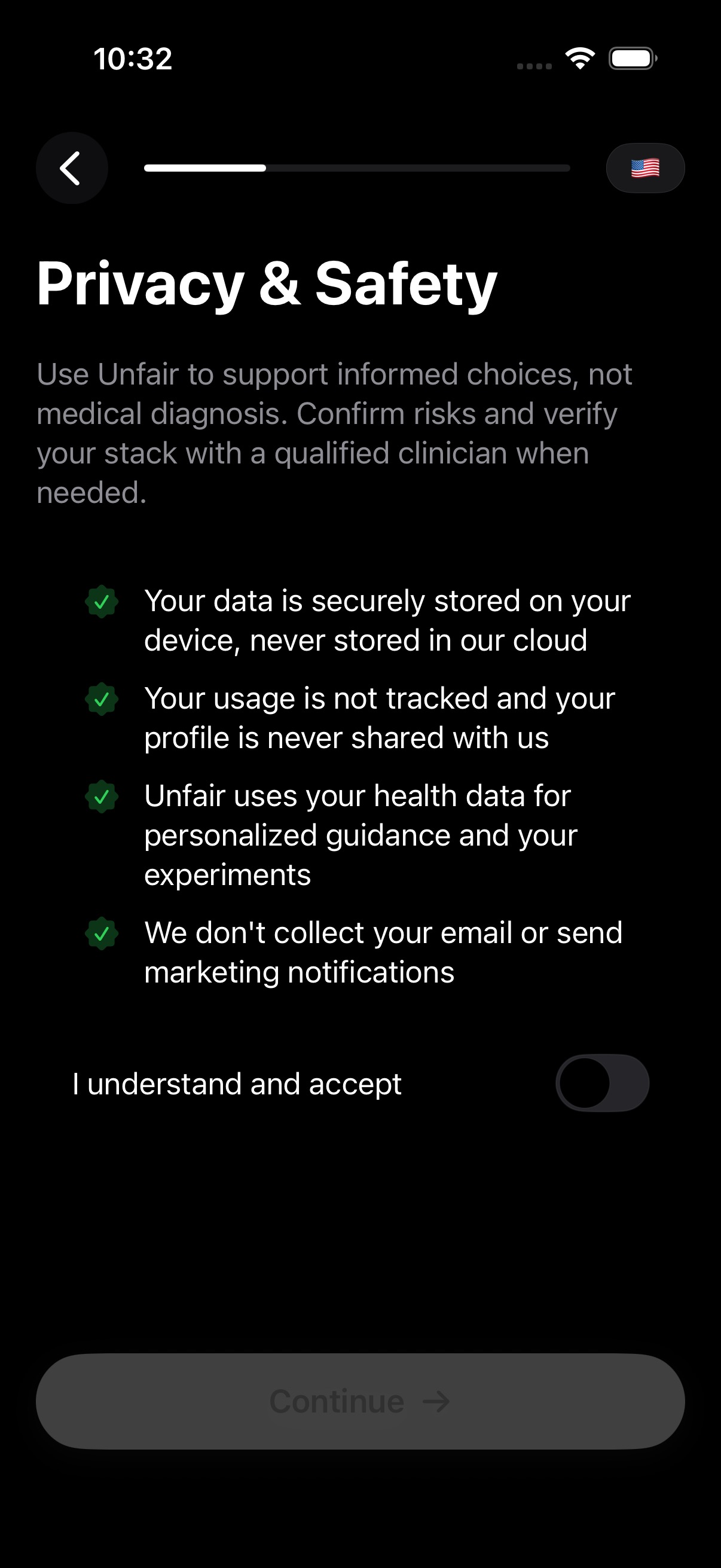
The privacy and safety screen is a required gate. `Continue` stays disabled until you accept it.
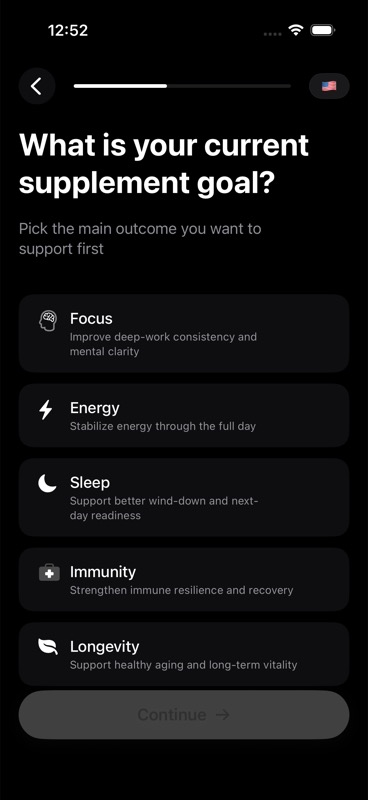
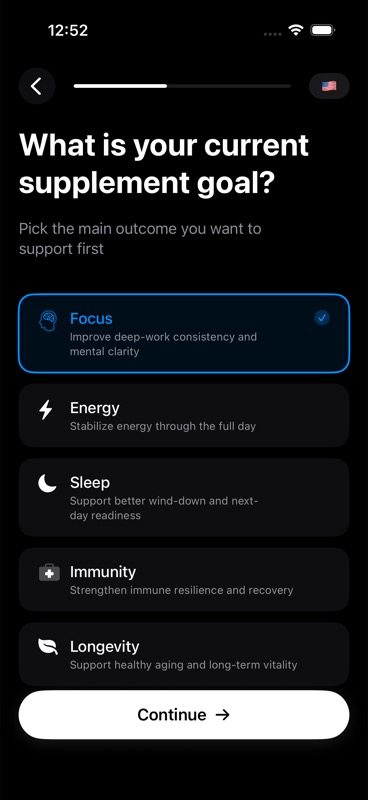
Goal selection starts empty and becomes valid once you choose a direction such as `Focus`.
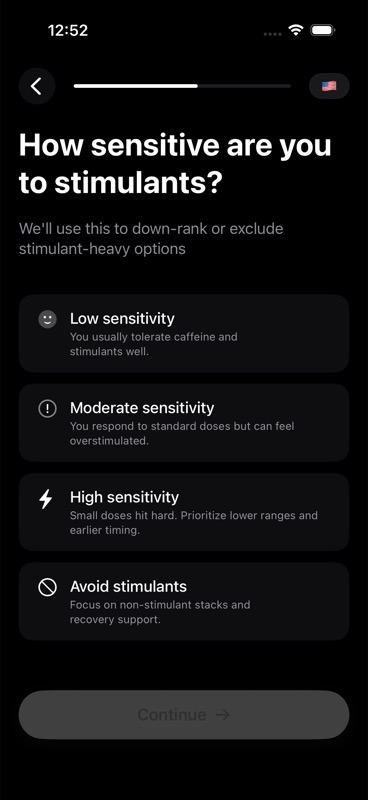
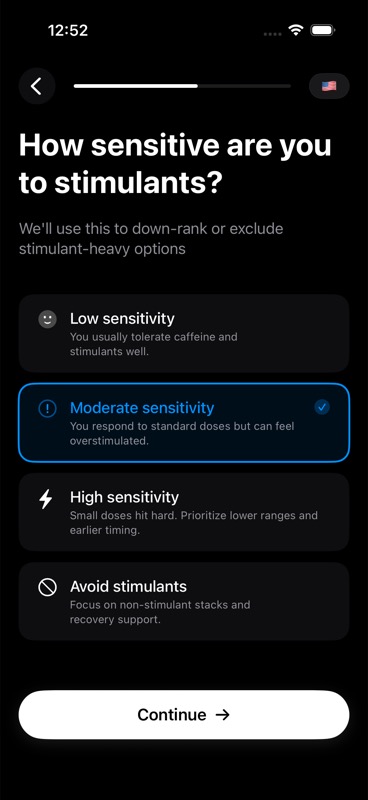
Stimulant sensitivity is also required before the app can move on to recommendations.
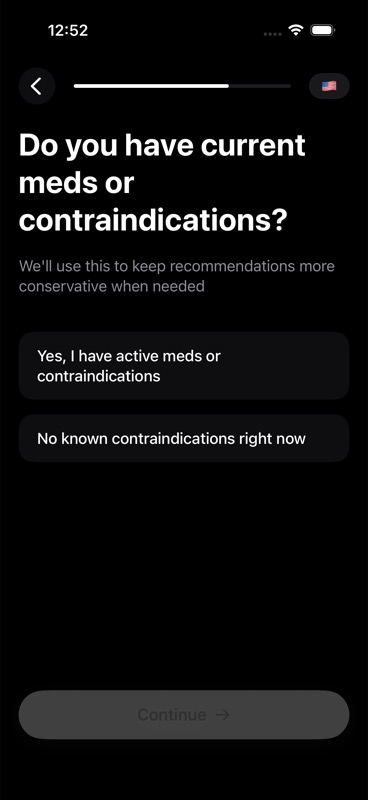
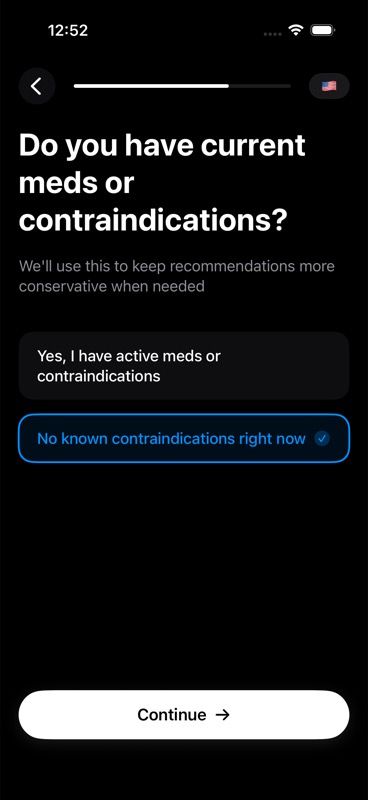
The meds and contraindications question is the last required decision before the first recommendations are generated.
What your onboarding profile includes
During the current onboarding flow, Unfair asks for:
- your first name
- a profile photo
- your gender
- whether you accept the privacy and safety notice
- your main supplement goal
- your stimulant sensitivity
- whether you currently have meds or contraindications
If you connect Apple Health during onboarding, Unfair can also prefill basic profile details it can read from Apple Health, including:
- birth date
- height
- weight
- gender
- workout frequency, when Apple Health has that data available
What is required during onboarding
To move through the shipped onboarding flow, some answers are required and some are not.
Required to continue:
- accepting the privacy and safety notice
- choosing a supplement goal
- choosing a stimulant sensitivity level
- answering the meds and contraindications question
Required on the profile step when that step is shown:
- first name
- profile photo
- gender
Optional in the onboarding experience:
- connecting Apple Health
- any Apple Health data that is not available or that you do not grant permission to share
If Apple Health does not connect, or if some data is missing, onboarding still continues. Unfair falls back to the answers you entered directly and moves on to your first recommendations.
What Unfair uses this information for
Unfair uses your onboarding profile in a few specific ways.
1. To build your first recommendations
Your goal, stimulant sensitivity, and meds or contraindications answer are part of the initial recommendation input. In practical terms, that means Unfair can favor options that better match what you want support with, and it can be more conservative when you say you have current meds or contraindications.
For a fuller explanation of how recommendation inputs work, see AI Recommendation Generation.
2. To personalize the app experience
Your first name and photo personalize the app interface. If you connect Apple Health, Unfair can also use the imported basics to make your profile more complete without making you type everything manually.
3. To support health and experiment features
Apple Health profile data is also used by Unfair's health and experiment features when available. In the shipped app, the onboarding flow saves imported basics like birth date, height, weight, and gender into your local profile.
How Apple Health prefill fits in
Apple Health is a convenience step, not a requirement.
When you tap Connect Apple Health, Unfair requests HealthKit permission and tries to read available profile data. If permission is granted and the data exists, Unfair prefills those values into your profile. If the request fails, you decline access, or Apple Health does not have a value, Unfair ignores the failure and continues onboarding.
That means Apple Health does not replace the required recommendation questions. It only helps fill in profile basics automatically when possible.
What you can change later in Settings
After onboarding, you can still update important parts of your profile in Settings.
Users can change later:
- profile photo
- first name
- supplement goal
- stimulant sensitivity
- current meds and contraindications answer
- language
- units
- notification preferences
Settings also shows your saved basics, including birth date, height, weight, and gender. In the shipped app, missing basics may be hydrated from Apple Health from Settings as well when that data is available.
If you want to revisit the setup experience from the beginning, you can also restart onboarding from Settings.
For the full setup flow, see Getting Started. For broader profile and preference changes after setup, see Settings and Preferences.