
Use `Stack Builder` in the `You` tab to create your own stack from supplements in your library, save it with a name and optional description, come back to it later in `Your Stacks`, and then edit, favorite, delete, start, or use it to launch an experiment.
Where to find Stack Builder
In the current app, `Stack Builder` lives on the `You` tab.
The tile does two jobs:
- opens the builder so you can make a new custom stack
- shows a `Your Stacks` shortcut when you already have saved stacks
If you have saved stacks, the tile also shows the number of saved stacks, so you can jump back into that list without searching for them in the library.
For a broader map of the `You` screen, see You Tab Overview.
How to build a custom stack
The builder is a two-step flow:
- choose supplements
- add stack details
You start on the supplement step.
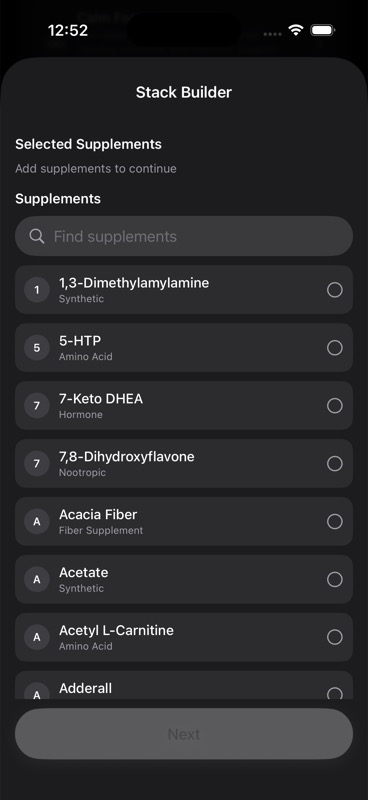
Step 1: choose supplements
The first screen shows:
- a `Selected Supplements` section at the top
- a searchable `Supplements` list underneath
- a `Find supplements` search field
Tap any supplement row to add it to the stack. Tap it again to remove it. Selected items also appear in the `Selected Supplements` area, where you can remove them with the `Delete` button.
The `Next` button stays disabled until you have selected at least one supplement. That means you cannot save an empty stack.
If search returns nothing, the builder shows `No supplements match your search.`
If you need help finding items before you build, see Supplement Search and Library and Supplement Library.
Step 2: add details
After you tap `Next`, the builder moves to the details step.
This screen includes:
- `Stack name`
- `Optional description`
- a `Run as experiment` toggle
- the current `Selected Supplements` list
`Stack name` is required. The `Save Stack` button stays disabled until the stack has both:
- at least one selected supplement
- a non-empty name
The description field is optional. It is useful when you want saved stacks to be easier to recognize later in `Your Stacks` or on the stack detail screen.
What saving does
When you tap `Save Stack`, Unfair saves the custom stack and closes the builder.
After that, the stack becomes part of your saved custom stacks and can appear in places that use your stack data, including:
- `Your Stacks` on the `You` tab
- stack results in `Library`, including the `Your Stacks` filter described in Supplement Search and Library
How to add or remove supplements while building
You do not need a separate edit mode while you are already inside the builder.
To add supplements:
- use `Find supplements` if the list is long
- tap any supplement row with an empty circle
- the row switches to a checked state and moves into your selected set
To remove supplements:
- tap the checked supplement row again in the main list, or
- tap the `Delete` button beside it in `Selected Supplements`
Because the selected list stays visible in both steps, you can review the stack before saving without leaving the flow.
How to name and describe a stack well
A good custom stack name helps you recognize the purpose immediately when you see it later in a list.
Useful names are usually based on the job the stack is meant to do, such as:
- sleep support
- travel recovery
- focus workday
- training recovery
Use the optional description for context you will want later, such as:
- when you use it
- what kind of day it is for
- how it differs from another stack with a similar name
The app does not require a description, so keep it short and practical.
How to find saved stacks later
Saved custom stacks are easiest to find from the `You` tab.
If you already have at least one saved stack, the `Stack Builder` tile shows `Your Stacks`. Open that to see the full list.
In `Your Stacks`:
- each row shows the stack name
- the row shows the description when one exists
- if there is no description, the row can show the supplement names instead
- tapping a row opens that stack's detail screen
If you have not saved any custom stacks yet, the list shows `No saved stacks yet`.
You can also find saved stacks from `Library` by searching for them or by using the `Your Stacks` stack filter when that filter is available. That behavior is covered in Supplement Search and Library.
How to edit a saved stack
Open the saved stack first, then use the stack's options menu.
For your own saved stacks, the detail screen can show `Edit` in the options menu. That opens `Stack Builder` again with the current stack already filled in:
- the same name
- the same description
- the same selected supplements
From there, you can change any of those pieces and save again.
This is the simplest way to:
- add a supplement to an existing stack
- remove one that is no longer worth keeping
- rename the stack
- rewrite the description so it is easier to recognize later
How to delete a saved stack
There are two shipped ways to delete a saved custom stack.
From `Your Stacks` on the `You` tab:
- swipe left on a saved stack row
- tap `Delete`
From the stack detail screen for your saved stack:
- open the options menu
- tap `Delete`
In both places, deletion removes that custom stack from your saved list. If the delete succeeds from `Your Stacks`, the app shows a short `Deleted stack` confirmation.
How to favorite a saved stack
Open the saved stack's detail screen and tap the heart button in the top-right area.
That button lets you:
- add the stack to favorites
- remove it from favorites later
When a stack is favorited, it becomes easier to revisit from:
- the `Favorites` section on the `You` tab
- the `Favorites` filter for stacks in `Library`
Favorites are just a shortcut. They do not replace saved stacks. A saved stack can exist without being favorited, and a favorited stack still keeps its normal saved-stack behavior.
What else you can do from a saved stack
Once a saved stack is open, the detail screen can also let you:
- `Start Stack`
- `Edit Schedule` if the stack is already active
- `Stop Stack` if the stack is active
- `Run Experiment`
That means a saved custom stack is not only a reference list. It is a reusable object you can activate, schedule, favorite, or test.
For more on starting and scheduling stacks, see Stack Planning and Adjusting Doses and Cycles.
How to start an experiment from the builder flow
The details step in `Stack Builder` includes a `Run as experiment` toggle.
If you turn it on before saving, the builder shows design choices for the experiment:
- `Single Cycle`, described in the app as `One baseline, one intervention`
- `Repeat Cycle`, described as `Repeated twice for stronger confidence`
If you save the stack with `Run as experiment` turned on, Unfair saves the stack first and then opens the experiment builder for that newly saved stack.
This is useful when you are creating a stack specifically because you want to test it in a more structured way, instead of only saving it for later.
If you do not turn on `Run as experiment`, saving the stack only saves the stack.
A practical workflow that works well
If you are building your first custom stack, this is the cleanest path in the current app:
- Open `You`.
- Tap `Stack Builder`.
- Search and select only the supplements you actually expect to use together.
- Tap `Next`.
- Give the stack a clear name.
- Add a short description only if it will help future you recognize it.
- Decide whether to turn on `Run as experiment`.
- Tap `Save Stack`.
- Return to `Your Stacks` later to edit, delete, favorite, start, or run the stack as needed.
The main rule is simple: keep the stack understandable enough that you will still know what it is for when you see it again in a week.