
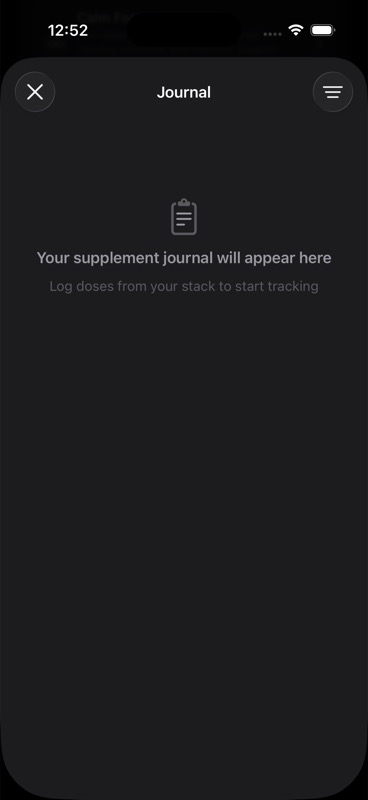
Journal Timeline shows your recent supplement activity in one place, grouped by day so you can quickly see what you logged, what belonged to a stack, and which experiment milestones happened around the same time.
What Journal includes
Journal shows a rolling window of recent activity. In the current app, that window covers today plus the previous 13 days.
Each day appears as its own section card. Inside each card, events are sorted from newest to oldest. If a day is marked as a cheat day in your plan, that day also gets a `Cheat Day` badge in the section header.
The event types you will see
Journal can show four kinds of rows:
| Row type | What it means | How to read it |
|---|---|---|
| Individual dose | A single logged supplement dose | Shows the supplement name, amount, route, optional notes, and time |
| Nutrient bundle | Multiple nutrition-based nutrient entries logged in the same minute | Shows a grouped title such as `Food`, `Multivitamin`, or `Supplements`, plus a summary of the nutrients inside |
| Stack dose | A grouped row for a logged stack event | Shows the stack name, how many supplements were logged, a short summary, and the time |
| Experiment event | A timeline event from an active experiment | Shows the event title, a short summary, and the time |
How day sections are grouped
Journal groups everything by calendar day, not by stack or by supplement.
That means a single day can mix together:
- individual supplement logs
- bundled nutrition entries
- stack-dose rows
- experiment events
The section header also shows the total number of events for that day.
How filters work
Use the filter menu in the top-right corner of Journal to switch between three views:
| Filter | What stays visible | What is hidden |
|---|---|---|
| `All` | Supplement events, stack-dose rows, and experiment events | Standalone supplement rows that already belong to a stack-dose row are hidden to avoid duplicate rows |
| `Supplements` | Individual dose rows and nutrient bundles | Stack-dose rows and experiment events |
| `Stacks` | Stack-dose rows only | Individual dose rows, nutrient bundles, and experiment events |
`All` is the broadest view, but it is still de-duplicated. If you log a stack and that stack creates its own grouped stack row, Journal hides the linked standalone supplement rows in `All` so you do not have to mentally collapse duplicates yourself.
How to interpret stack-dose rows
A stack-dose row is the grouped record for one logged stack event.
Each stack row shows:
- the stack name
- `Logged 1 supplement` or `Logged X supplements`
- a short summary of the logged supplements
- the timestamp for that stack event
If the stack contains more than a few supplements, the summary is shortened. Journal lists up to the first few supplements inline, then adds a `+N` count for the rest.
Tap a stack-dose row to expand it. The expanded state shows the supplements inside that stack event, with each supplement name and logged amount on its own line.
If a stack event was recorded as skipped, the row also shows `Skipped`.
How to interpret nutrient bundle rows
Journal sometimes combines multiple nutrition-based entries into one row instead of listing them separately.
This happens when all of the following are true:
- the entries use the nutrition route
- each entry has a nutrient identifier
- the entries were logged in the same minute
- the entries are not part of a stack-dose event
- the entries do not have notes or side effects attached
When that happens, Journal creates one bundle row with a title based on the source:
- `Food` for food-sourced nutrition entries
- `Multivitamin` for multivitamin entries
- `Supplements` for other grouped nutrition entries
The summary line lists the nutrients and amounts. If there are many items, the summary is shortened with a `+N` suffix.
If one of those entries has its own notes, side effects, or stack linkage, it is shown as its own row instead of being bundled.
How to interpret experiment events
Experiment events only appear in the `All` filter.
Journal currently shows three experiment event types:
| Event title | What it means |
|---|---|
| `Experiment phase` | The experiment entered a new phase such as Baseline, Intervention, Washout, or Complete |
| `Experiment decision` | A decision was recorded for the experiment, such as Keep, Kill, or Continue |
| `Experiment check-in` | A check-in score was recorded for the experiment |
The summary line includes the experiment title plus the phase, decision, or check-in score. For example, a check-in row is shown as the experiment name followed by a score out of 10.
What `Skipped` means in Journal
`Skipped` means the event was saved with skipped status instead of taken status.
You may see `Skipped` on:
- an individual dose row
- a stack-dose row
Skipped supplement events are shown as their own rows. They are not turned into nutrient bundles.
What Journal does not do
Journal is a timeline view. It is designed to help you review what happened and when.
It does not turn the page into a trends view, and it does not show experiment analysis on its own. For follow-up reading, use Adherence and Outcomes Trend, Weekly Stack Review, and the glossary.