
Unfair works without a purchase, and Pro is an optional paid upgrade offered through the App Store. Today, the app clearly includes purchase screens, subscription options, restore tools, and a lifetime purchase path, but not every planned free-vs-Pro limit is enforced across every part of the product yet.
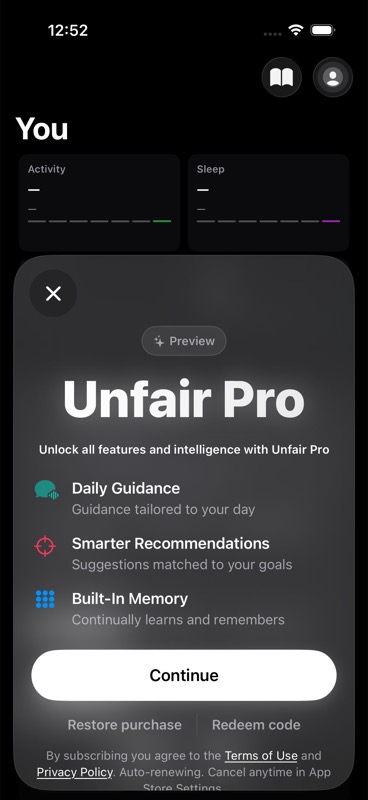
What to expect on free access
If you do not subscribe, you can still use the app.
In the current app, free users can complete onboarding, see recommendations, browse the supplement library, use settings, and continue past the onboarding paywall with a visible `Continue without purchasing` option. That means the app is not set up as a purchase-required product.
This is the most accurate mental model right now:
- Free access is real, not just a teaser.
- Pro is available for people who want to support the app and unlock paid access as those distinctions expand.
- Some Pro messaging describes broader guidance, insights, or premium workflows, but those boundaries are still being tightened in the product.
If you want help understanding a specific feature, start with /help or the related terms in /glossary.
What Pro means today
Unfair currently presents Pro as the paid version of the app and sells it through Apple's in-app purchase system.
Depending on where you see the paywall, Pro may be described with language about full access, smarter recommendations, guidance, insights, or premium workflows. Treat that as the product's current paid-access messaging, not a guarantee that every screen is already hard-gated in the same way.
A practical way to think about Pro today:
- It is the app's paid plan.
- It is purchased and restored through your Apple account.
- It may unlock or become more important as more plan-based limits are enforced over time.
- It is also a way to support continued development.
How subscription purchase works
The standard Pro paywall loads products from the App Store configuration for your region.
In practice, that means:
- Prices are shown inside the app at the time of purchase.
- The exact amount can vary by country or region.
- The paywall is built to show monthly and yearly subscription options when those products are available.
- If products do not load correctly, the paywall can show `Not available` or a retry state instead of forcing checkout.
During onboarding, the app can show a subscription screen after recommendations. On that screen you can:
- choose a subscription plan if one is available
- subscribe through Apple
- restore past purchases
- open Apple's subscription management screen
- continue using the app without purchasing
That last point matters: onboarding does not currently require payment to continue.
Lifetime purchase option
Unfair also has a separate lifetime purchase flow.
Today, the lifetime option appears as its own purchase path in Settings under `Lifetime subscription`. It is presented as a one-time purchase for `Unfair Pro (Lifetime)` rather than as part of the standard monthly/yearly subscription picker.
What you should realistically expect:
- Lifetime is a separate purchase option, not just a billing variation inside the normal subscription sheet.
- The price is loaded from the App Store and shown in the app.
- The lifetime screen includes its own `Restore purchase` action.
- The app describes lifetime as a one-time purchase with no recurring billing.
Where to buy, restore, or manage purchases
Buy Pro
There are currently a few obvious places where you may see paid access:
- during onboarding
- from Settings through `Subscribe`
- from Settings through `Lifetime subscription`
Restore a previous purchase
Use `Restore Purchases` or `Restore purchase` if you already paid with the same Apple ID and the app is not recognizing that access yet.
This tells the app to ask Apple for your existing entitlement again. It is the right first step after reinstalling the app, moving to a new device, or signing back into the App Store.
Manage a subscription
Use `Manage Subscription` when you need Apple's billing controls, such as:
- checking renewal status
- viewing the next billing date
- changing or canceling a subscription
That action opens Apple's subscription management UI. Billing changes are handled by Apple, not directly inside Unfair.
If you paid but access still looks wrong
Start with these checks:
- Make sure you are signed into the same Apple ID used for the purchase.
- Use the in-app `Restore Purchases` or `Restore purchase` button.
- Open `Manage Subscription` to confirm the subscription is active, if you bought a recurring plan.
- If you bought lifetime, reopen the lifetime screen in Settings and try restore there.
- If the problem continues, use the app's support path from Settings and include what you bought, whether it was subscription or lifetime, and what screen still looks locked.
You can also review /help/troubleshooting and /help/settings-and-preferences before contacting support.
A plain-language summary
Right now, Unfair is best understood as an app with usable free access and optional paid plans, not as an app where every major feature is already sharply split between free and Pro.
If you stay on free, you can still get through onboarding and use the app. If you buy Pro, the purchase is handled through Apple, subscriptions can usually be monthly or yearly when offered in your region, and a separate lifetime option is available from Settings.